Browser: Vivaldi
I've been testing browsers on and off for years — sometimes every few months.
Remembering how I once backed up Internet Explorer 3.02 on a few floppy disks back in the late 90s, my browsing history has been long, inconsistent, and full of experiments. As the web evolved, so did browsers. I often wondered what to use next and tried something different: Internet Explorer, Firefox, Opera, Netscape, Maxthon, and a few others I've since forgotten.
Browser habits and expectations
Back in the day, browsers were just tools — a means to reach the web. Today, they're ecosystems, packed with integrations, profiles, sync features, and security layers. What once fit on a few floppy disks now spans gigabytes and ties into cloud accounts. My expectations have grown accordingly: I want speed, clarity, and the ability to make the browser mine without endless tweaking.
In recent years, privacy and tracking have become major topics. So I went back to Firefox — and honestly, it's probably the browser I've used most over the years, aside from Microsoft's various creations. Unfortunately, Firefox has always struggled with performance. About a year ago, I started looking for something faster and equally privacy-oriented.
At the time, I was using Edge. Microsoft's Chromium-based version still had a few quirks and limitations, but since I already rely heavily on Windows and Office, I didn't see that as a significant privacy issue — Microsoft already holds quite a bit of my data anyway.
Still, I began another round of tests and reviews: Firefox again, then Brave, then Vivaldi. Firefox remained sluggish. Brave introduced some strange concepts around tokens and rewards that immediately turned me off. And so, I landed on Vivaldi.

Let's be clear — this isn't a technical review or performance comparison. I was looking for a browser that was fast, had solid bookmark management, and offered decent privacy controls. Being Chromium-based, Vivaldi supports the same wide range of extensions, though I still only use four or five regularly.
The real selling point for me was Vivaldi's Start Page — a flexible, customizable interface for organizing bookmarks into visual groups. You can arrange "Speed Dials" into folders, display them in different sizes, and even categorize them into tabbed views. Whether you like a dense overview or a clean, minimalist layout, Vivaldi adapts to your style.
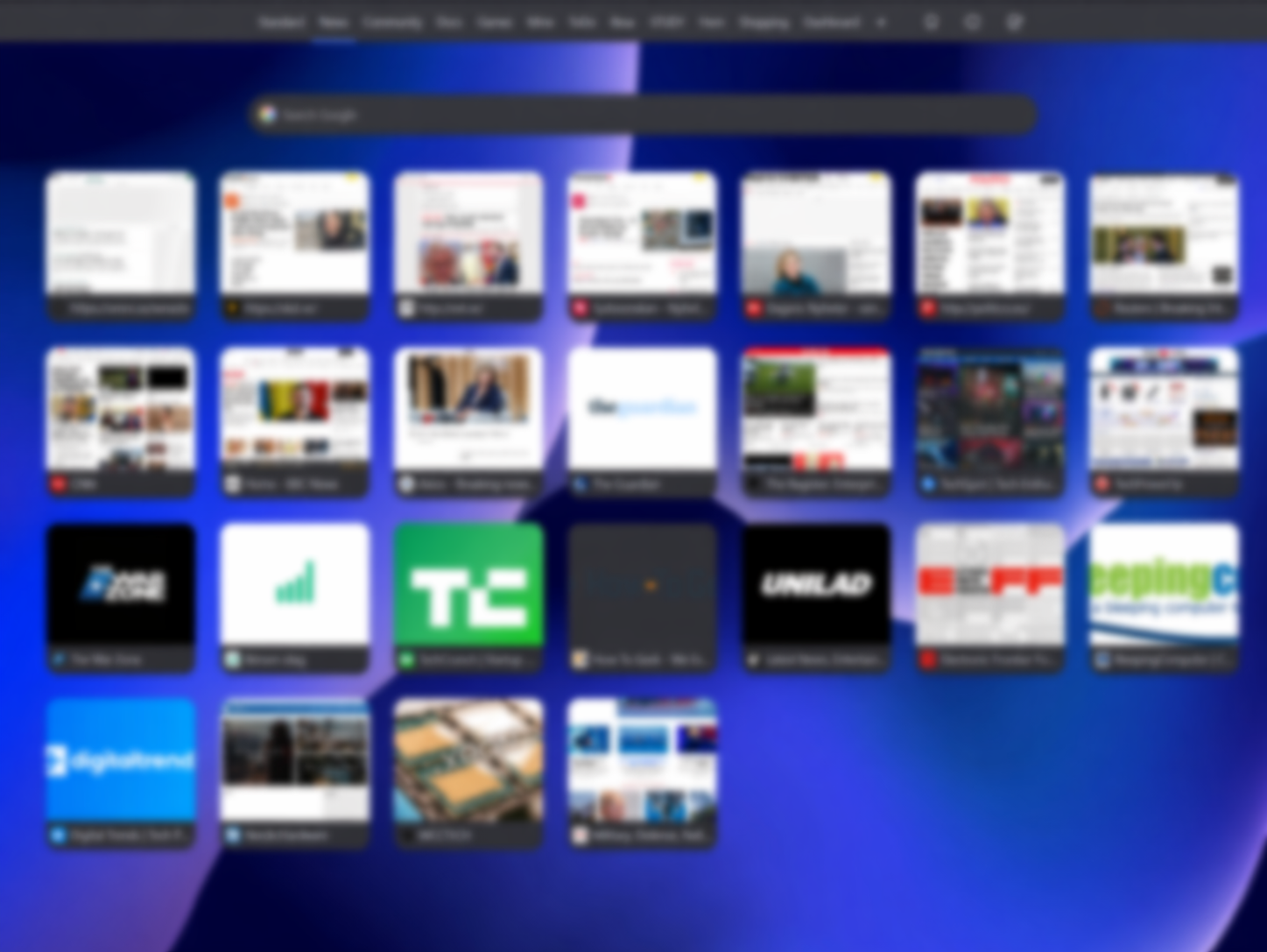
You can have many bookmarklets, or Speed Dials, you can have folders of Speed Dial categories (as you see in the menu bar in the image above) and you can resize the graphics in five different sizes. If you want a clutter, you can have it, if you need a neatly organized structure, you can have that.
Familiar, yet personal
Vivaldi feels like a browser built by people who actually browse. It keeps the familiar Chromium backbone but adds human touches — small things like side panels, session saving, and how easily you can organize or even theme your workspace. It reminds me that customization doesn't have to mean clutter; it can simply mean control.
Of course, there are many other factors to consider when choosing a browser, such as additional plugins, security features, and more. However, for me, Vivaldi's bookmark management and customization options were the selling points.
While I acknowledge that my review may not be the most comprehensive or relevant for everyone, I encourage you to do your own research and testing to find the best browser for your needs. After all, each individual's requirements and preferences may vary, and it's important to make an informed decision. There are, obviously, many other concerns I have not addressed.
Link to Vivaldi