
Installing LSI / Avago Megaraid Storage Manager
There are questions about this floating around the internet like digital tumbleweed, and I
The LSI/Avago MegaRAID Storage Manager (MSM) is not exactly new technology, but if you are still running one of these RAID cards — rebranded or otherwise — you probably still need the management interface.
So here it is, documented...
ReadMe.txt — the supported device list has gaps. I personally run this on a machine with a rebranded Huawei SAS3108 that does not appear on that list. It works.ReadMe.txt with official installation instructions. This guide is an alternative — arguably more readable, certainly more annotated. If you prefer the official route, it is in there. If MSM or Java is already installed on your target machine, sort that out first. This guide assumes a clean slate; upgrade paths have not been tested.Disclaimer: Provided as-is, no warranties. There are other Java configurations, other approaches, and entirely other solutions. This guide assumes you are not a Java developer with knowledge about version management. If you are — feel free to improvise, but the path described here is not wrong simply because a different path also exists.
What You Need
Download the required package here: [DOWNLOAD LINK] 104MB, approximately.
The package contains the MSM installer, the 32-bit Oracle JRE Setup, and the javax.activation.jar file that MSM quietly requires but does not always make obvious.
Installation
Step 1 — Install Oracle Java i586 (32-bit)
Yes, 32-bit. On an x64 OS. The x64 version of Java did not work; the 32-bit version does. Do not overthink it.
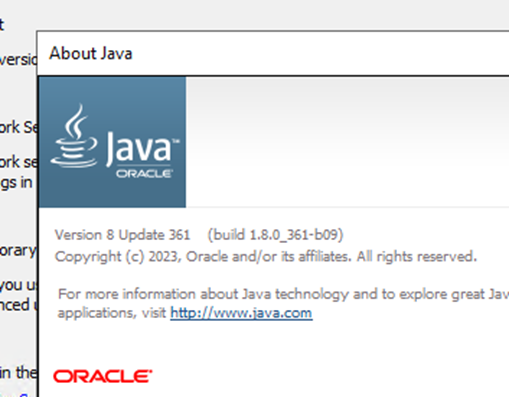
During installation, choose a destination folder with no spaces in the path.
This matters later.
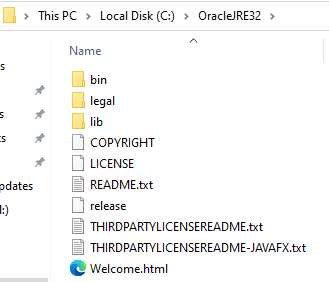
A clean example:C:\OracleJRE32
The installer included in the package is the version tested with this guide.
You can use a newer version from the Oracle site if preferred, but your mileage may vary.
Step 2 — Set the JRE_HOME Environment Variable
Once Java is installed, create a system environment variable pointing to the installation folder:
- Variable name:
JRE_HOME - Variable value:
C:\OracleJRE32(or wherever you installed it)
Environment variables live in System Properties > Advanced > Environment Variables.

This applies to most Windows versions. Microsoft's own documentation covers it if you need a walkthrough: Environment Variables — Microsoft Learn.
Step 3 — Reboot
Reboot the machine. Environment variables need a fresh session to take effect.
Step 4 — Verify Java
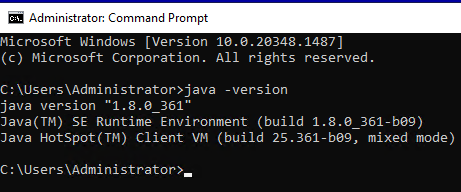
Open a Command Prompt and run:
java -version
Note the single dash — it is -version, not --version. You should see the installed JRE details. If you get an error, the environment variable is not set correctly or the reboot did not happen.
Step 5 — Copy javax.activation.jar into the Java /bin/ Folder
From the downloaded package, copy the file javax.activation.jar into the /bin/ subfolder of your Java installation:
C:\OracleJRE32\bin\This file is listed as a separate download in the official ReadMe.txt and it is not optional — without it, MSM will fail to locate the server. It is included in the package to save you the hunt.
Step 6 — Install MSM
Run the MSM installer. A few prompts worth noting:
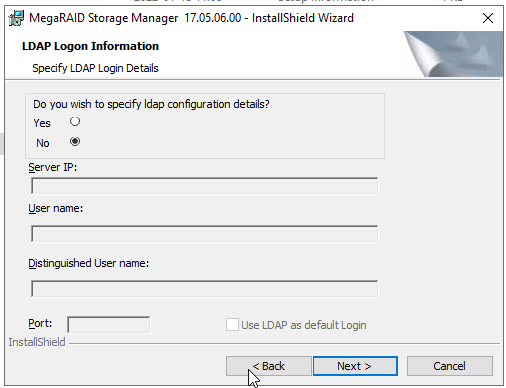
LDAP prompt: Select No if you do not have a running LDAP server. Most people do not.
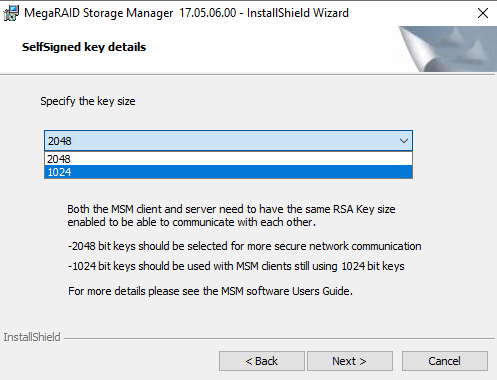
Key size prompt: Both 2048 and 1024 worked in testing. Either is fine.
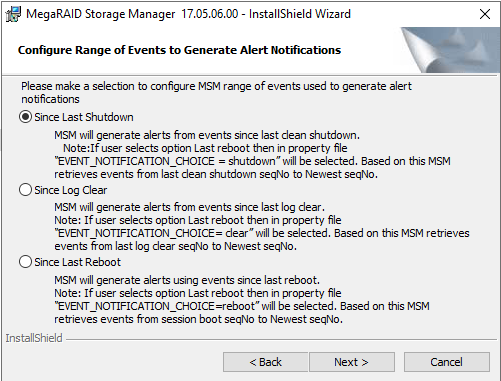
Remaining prompts: Default selections throughout. Nothing exotic required.
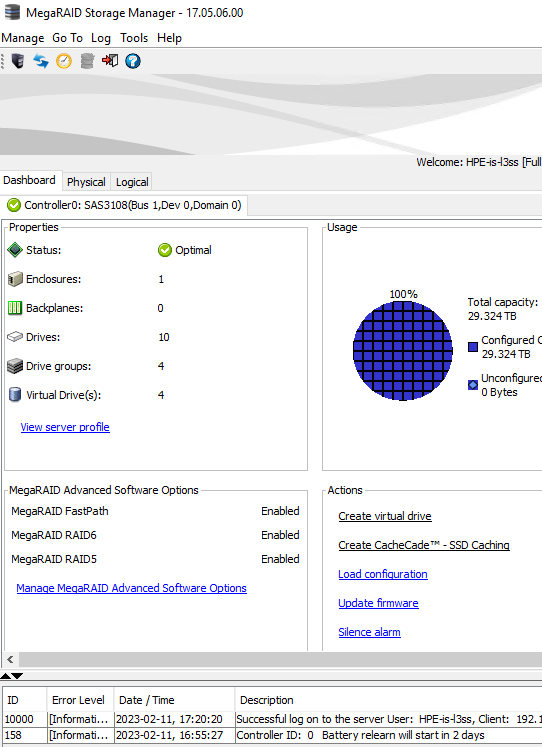
No additional reboot is needed after the MSM installation.
Done
MSM should now be installed and able to communicate with your RAID controller. If it cannot find the server, the most likely culprit is the missing javax.activation.jar — confirm it is in the right place before anything else.
As noted at the top, this has been tested on hardware not officially listed in the MSM supported device list. If your card is LSI-based or a rebranded variant thereof, there is a reasonable chance it works regardless of what the documentation claims.